Prepare a short client agenda, check access, and send it with clear preparation and a written response route.
“New website kickoff” fits easily in an invitation. It does not tell the client what they need to decide or prepare. Write a short agenda instead: the question you need answered, who can decide, and which inputs they will use. If an input is missing, name who will supply it and which decision must wait.
This guide helps you prepare a document to send before the meeting. It includes a copyable template, a completed example, and a way to request a written response without another meeting. This is a proposed working procedure, not a measured method for making meetings faster.
1. Write down what you want to leave with
Start with one sentence: “We want to decide whether the proposed website structure matches the agreed scope.” Then divide the agenda into actual decisions. A general item such as “content” may conceal two different questions: which pages to create and which existing content to migrate. Each needs different inputs.
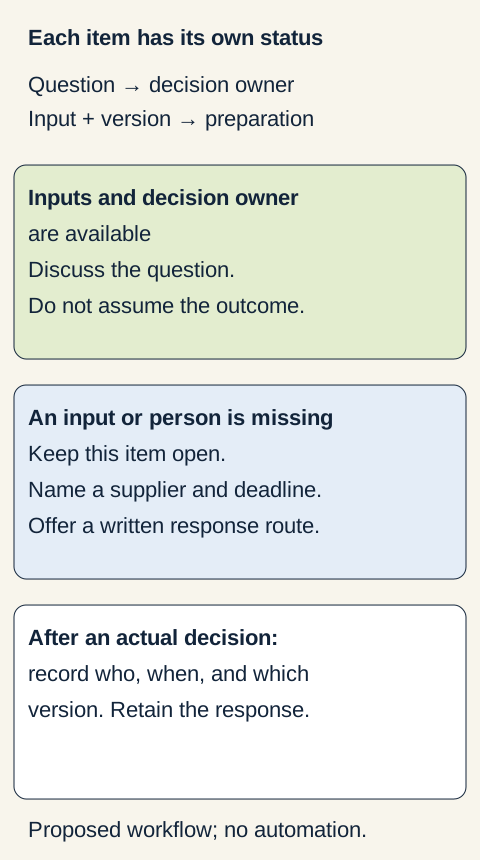
For every question, name the person authorized to decide. The person supplying information may not be authorized to approve the result. If the decision owner cannot attend, prepare a specific written question and a proposed response deadline. Do not mark the item approved without their answer.
2. Attach the inputs and specify the preparation
For each question, link to the current input and identify its version. State what you know and what you do not. “We are waiting for the list of existing pages; the client’s contact will supply it by the agreed date” is more useful than “content to be resolved.”
Make preparation an action the recipient can perform: “Open structure v1 and flag any pages you think are missing.” If they cannot access the input, they cannot complete that preparation. Resolve access first or choose another approved way to share it.
Use the documents, email, and calendar your team already uses and has approved. Preparing this agenda does not need to start with choosing a new suite. Even with existing tools, allow for preparation and checking; this is not a promise of zero cost.
3. Copy the short template
Paste this block into your working document. Repeat the “Decision item” section for each separate question. Replace brackets with actual details; an empty field is not confirmation.
CLIENT AGENDA
Purpose and proposed result: [what we want to leave with]
Meeting: [date, time, time zone / event link]
Agenda: [version and revision date]
Current document: [one primary link]
Preparation coordinator: [name and contact]

DECISION ITEM
Question: [specific question to decide]
Decision owner: [name and role; verify authority]
Known inputs: [what we know; link and version]
Missing inputs: [what we do not yet know / none]
Supplier and deadline: [name, date, time, time zone]
Participant preparation: [what to open, review, or add]
Status: [ready for decision / awaiting input / awaiting decision owner]
Written response route: [who to reply to, where, and proposed deadline]
If the input or answer does not arrive: [which decision stays open]

AFTER THE DECISION
Decision and any conditions: [actual response]
Decided by and when: [name, date]
Input reviewed: [exact input and version]
Decision evidence and next action: [link; who does what by when]
Leave the last section blank before the meeting. A sent agenda sets out a proposed process; it does not establish agreement on scope or acceptance of a task.
4. Completed example: structure can be discussed, migration waits
This entire case, including names, dates, times, and input identifiers, is fictional. It is not experience with a particular client.
A small studio is preparing a website kickoff. It has a proposed structure but no inventory of existing content. It therefore prepares two separate questions.
Agenda header
- Purpose: decide on the proposed structure and identify what is missing for a migration decision.
- Meeting: October 22, 2026, 10:00–10:30, Europe/Prague.
- Agenda: v1, October 19, 2026; primary link: [insert the link to this agenda].
- Coordinator: Petra, the studio coordinator.
Item A — Does structure v1 match the agreed scope?
- Decision owner: Jana for the client; the fictional brief authorizes her to confirm scope.
- Known inputs: accepted brief Z-01 v2 and proposed structure v1; [insert links].
- Missing inputs: none known for this question. Jana still needs to check whether she has enough information to decide.
- Preparation: Jana reviews structure v1 and flags missing or unnecessary pages by October 21, 15:00, Europe/Prague.
- Status: ready for decision. If Jana needs more information, the item stays open.
- Written response route: Jana sends Petra an answer in the agreed email thread, linking to structure v1; the proposed deadline is October 23, 12:00, Europe/Prague. Without an answer, the structure is not approved.
Item B — Which existing content should be migrated?
- Decision owner: Jana for the client.
- Known inputs: proposed new structure v1. It does not establish what exists on the current website.
- Missing inputs: inventory of existing pages and content; currently unknown.
- Supplier: Tomáš, the client’s contact; proposed deadline October 23, 10:00, Europe/Prague. Petra will confirm that deadline with him.
- Preparation: Tomáš supplies the inventory and its link; after delivery, Jana marks what to migrate, discard, or verify further.
- Status: awaiting input. The kickoff can clarify delivery of the inventory; it cannot record migration as decided.
- Written response route: after receiving the inventory, Petra sends Jana its exact version and the migration question. She proposes a response deadline based on actual delivery. If the inventory does not arrive, the decision stays open.
The example keeps uncertainty about migration separate from the structure question. Each item has its own inputs and status. Even for the structure, the agenda does not predetermine the result: record the decision only from Jana’s actual response, including its version, conditions, and reply link.
5. Link the document to the invitation and check access
If you already use Google Docs and Calendar, you can use their integration. According to Google’s meeting notes help, checked October 17, 2026, on a computer you can type @ in a document, select Meeting notes, and find the event. Event details are added to the document, but the document is not yet attached to the invitation. The organizer shares and attaches it using Share & attach.
There is also a documented Calendar route: while creating an event, use Add description or attachments → Create meeting notes; for an existing event, use its meeting notes or document attachment option. Choose one route and check that the invitation links to the intended document. Google says you cannot add meeting notes this way if someone has already attached notes or you do not have permission to edit the event.
An attached document may still contain outdated details. The same help explains that changes to details in the notes and the event do not synchronize both ways. After changing the time or participants, compare the invitation with the document. Adding someone to the notes does not invite them to the meeting.
This describes a documented feature, not a test in your account. Before using it with a client, check actual permissions and access for the intended external recipient. Sending a link does not prove they can open it. If access fails, first check the recipient’s account and the specific file; do not create random extra copies or expand sharing to anyone with the link.
If the feature is unavailable, put a verified link to the approved document in the invitation or agreed conversation. Check subsequent changes in both the document and invitation.
6. Send the agenda and set the next action for open items
In your accompanying message, state the meeting purpose, agenda link and version, specific preparation, and deadline. Explain how the client should report missing access or inputs and where they can answer in writing. Remove internal comments the client should not see before sending.
If the decision owner cannot attend, move their question to the agreed written response route. Identify the exact input version and ask for a decision or an explanation of what is missing. Silence is not consent. Agree any rescheduling or cancellation; this template does not send or reschedule anything automatically.
After receiving an answer, retain its link, date, and the specific version reviewed. If the input changes meanwhile, do not let an old approval appear to cover the new version.
Check before sending
- Each question has a person authorized to decide; if they cannot attend, there is a written response route.
- Known inputs have a link and version. Missing information stays explicitly unknown.
- Each missing input has a supplier and an agreed or explicitly proposed deadline.
- Participants can tell what to prepare and how to respond.
- The intended recipient has checked access to the actual file; otherwise access is still unconfirmed.
- Time and participants in the document match the invitation.
- The client-facing version contains no confidential internal information.
- Every open item has a next action. A sent link or blank answer is not recorded as approval.
Once the checks pass and access is resolved, send the agenda through your usual approved channel. The aim is to prepare specific decisions and make obstacles explicit before the meeting.
Sources and limits
- Google Docs Help: Add meeting notes to Google Calendar events. Documentation checked October 17, 2026; it describes steps and limits, not the result of a test in a particular account.
- Team collaboration research dossier, revision October 2, 2026. Context for using an existing route, maintaining the current version, and checking access; this private source may require permission. You do not need it to use the template.
The template, decision fields, and fictional kickoff are this guide’s practical design. They do not describe a client case or documented time savings.